Skip to Main Content

MARKETPLACE

Presentation Builder

By Paldi Solutions

  • Collaboration
  • Export enhancements
  • Presentation
  • Report
  • User experience (UX)
  • Visualization
OS Support
Windows
Linux
Supported Sisense Versions (Linux) L8.2.1.310
Supported Sisense Versions (Windows) 8.0.1
Last Updated July 16, 2019
Tags
csv
Email
embedded
export
Google Slides
GSuite
IMG
Infographics
OEM
pdf
PDF Export
png
Presentation
print
Report

Presentation Builder is a tool that helps you embed Sisense widgets into presentations and update them upon demand with a single click.

With Presentation Builder you can:

  • Easily add Sisense widgets as images directly from within your presentation.
  • Refresh your presentation with up-to-date data in a single click.
  • Change filters, click refresh, and produce a new presentation to a different client – in a single click.
  • Choose a template from a library of presentation templates and populate them with your Sisense widgets.
  • Create branded, personalized presentations based on individualized needs
  • Reduce presentation building time by 90%
  • Add KPI widgets as simple plain text within text boxes so you could style them the way you want it.
  • Easily view and use the underlying data behind your widgets.
  • Resize your images to the specific size you need them to be without stretching them or modifying their size in their source dashboard.
  • Supports Data Security
  • Viewers can define their own report
  • Have our own designers & Sisense experts building your first report for you!

Future Developments:

  • Presentation Builder Email Reports tool which is a service that lets you easily use your Presentations Builder as PDF Email Reports and automatically distribute them to your users.

See it in action:

How Does it Work?

1. Open Presentation Builder Add On:
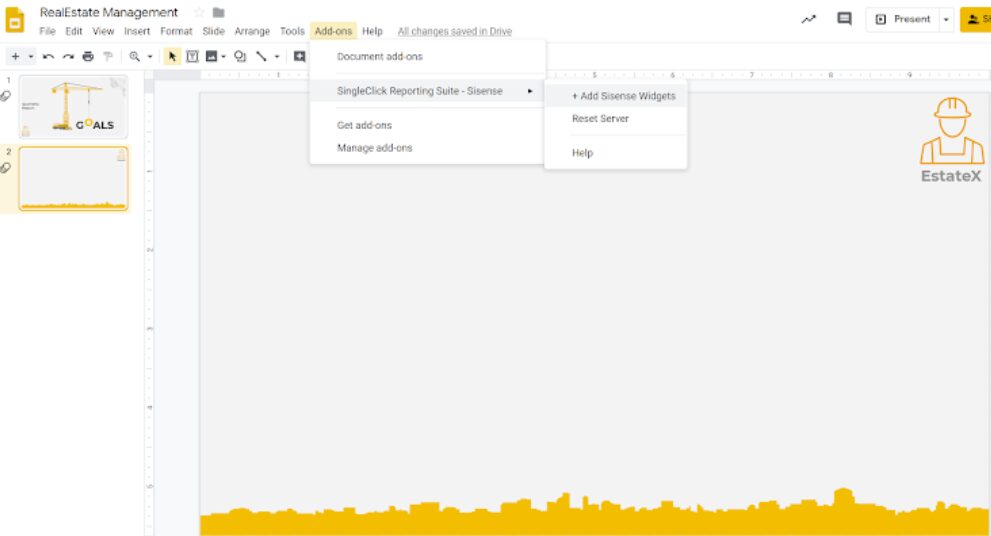
Sample dashboard image

2. Easily navigate across the dashboards & widgets and choose which to add to your presentation:
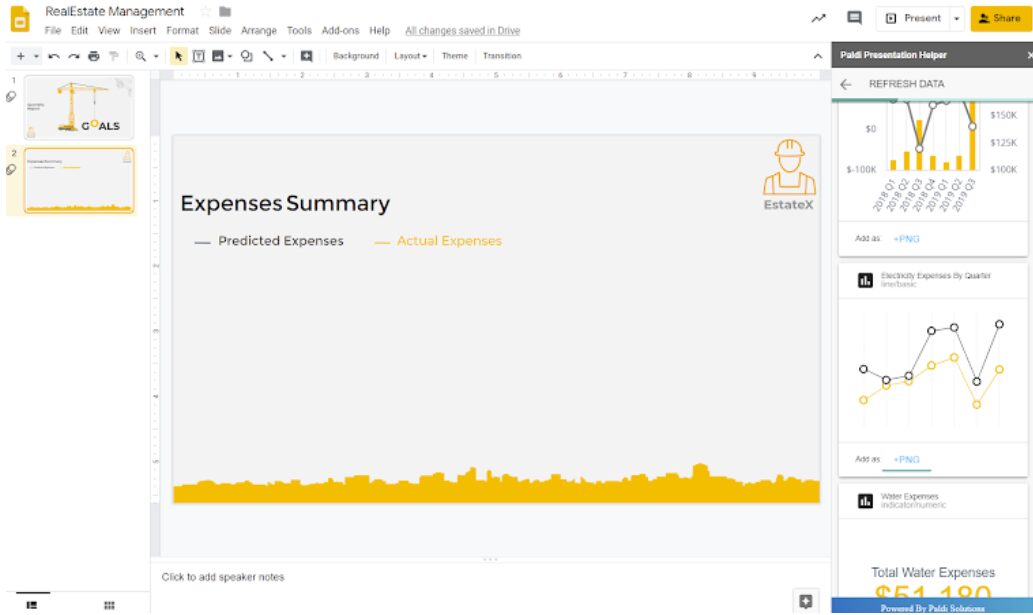
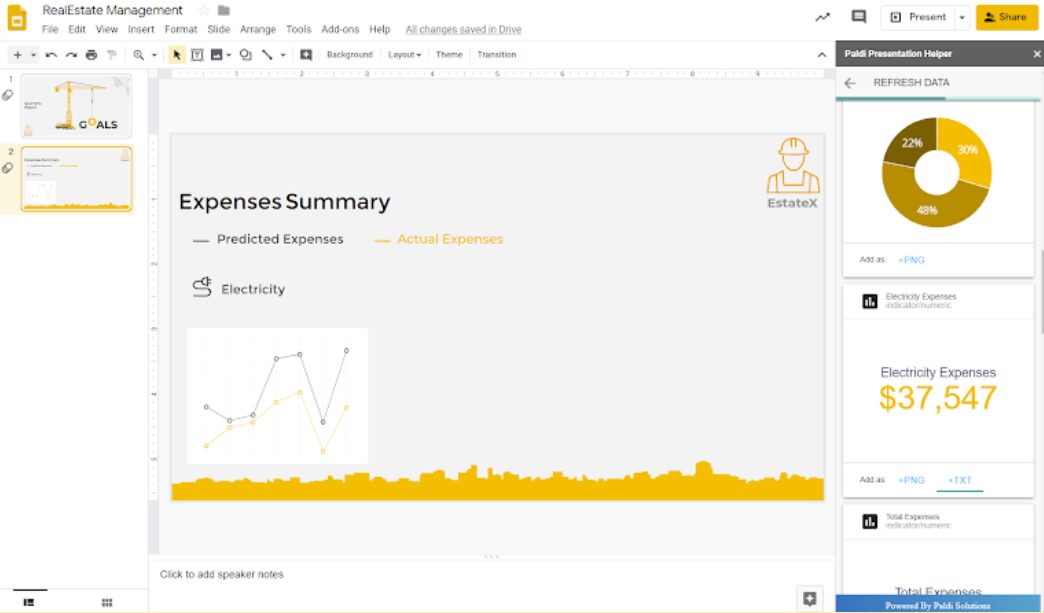
Sample dashboard image

Sample dashboard image

3. Indicators can be added as PNG or as plain TXT:
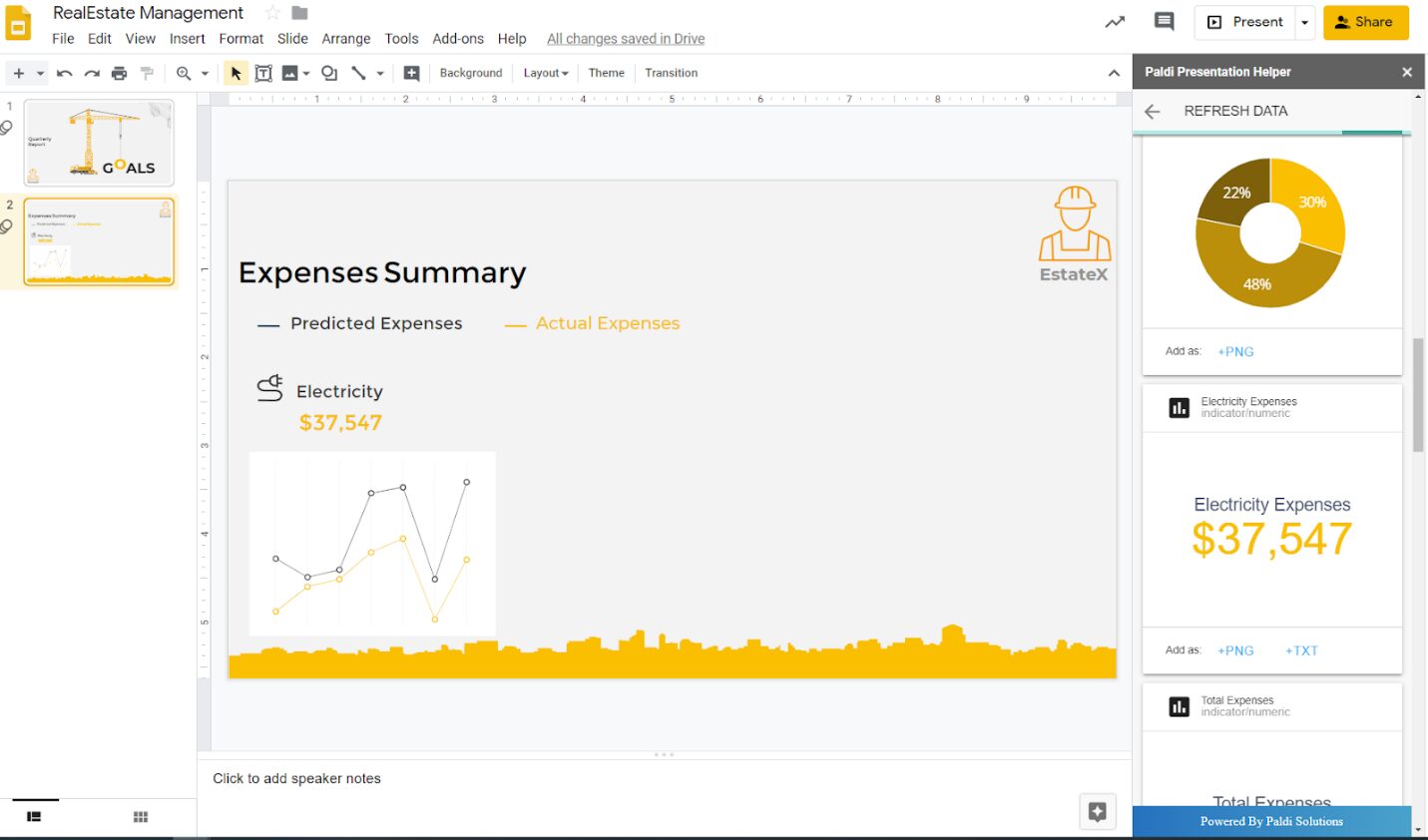
Sample dashboard image

4. Keep editing your presentation:

Sample dashboard image

And now for the really cool stuff 🙂

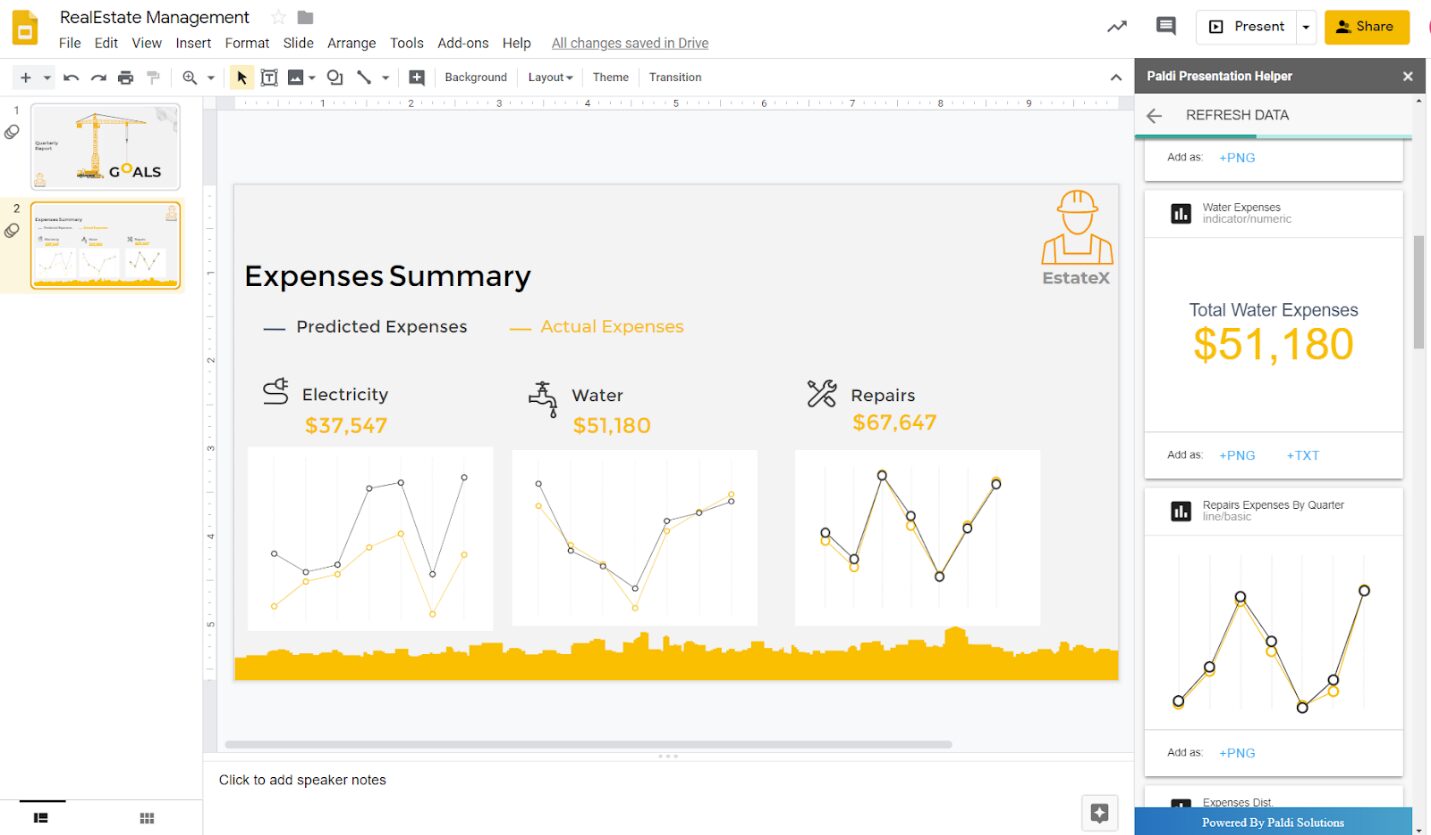
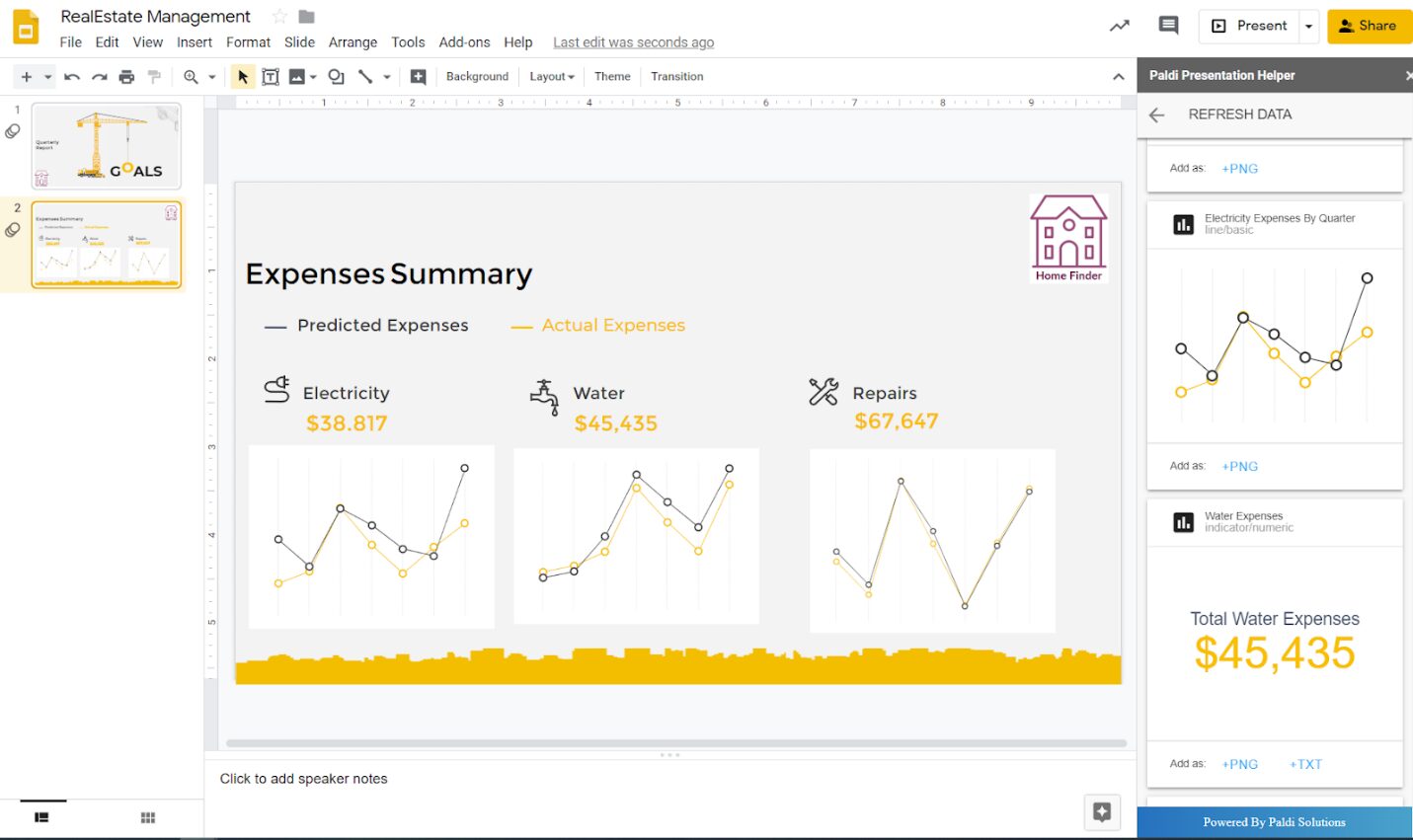
  • Few hours passed by, data has changed and you want to update your presentation? Simply click on Refresh Data and the results will be updated 🙂
  • Want to generate the same presentation but for a different customer?
  • Want to play with filters and see the results?

5. Change the dashboard filter selection

Sample dashboard image

6. Click on ‘Refresh Data’:

Sample dashboard image

And that’s it 🙂

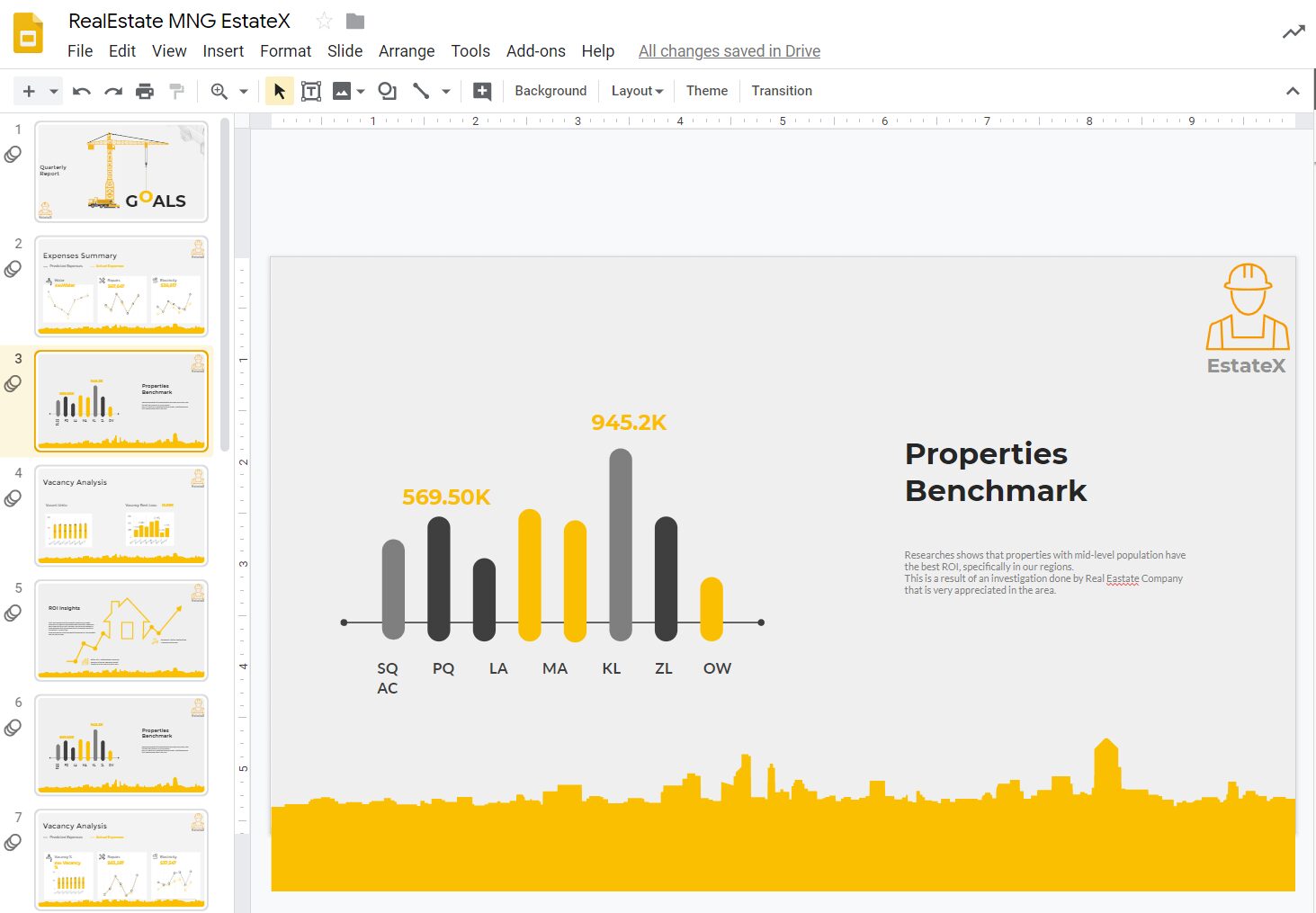
Need some inspiration? Use our predefined templates library:

Template library snapshot

Sample dashboard image


Paldi Solutions

Contact details: [email protected]

Website:  paldi.solutions

Two people on discussion

Subscribe to the Sisense newsletter